CTF Import data handling
Enhancements to an existing import workflow—helping users find and fix bad data faster after a CTF import completes.
Background
A Common Transfer File (CTF) is a standard format for sending student data within and between schools. It is often used when students transfer to new schools or when they are at the end of a phase of education (Primary → Secondary).
Current process
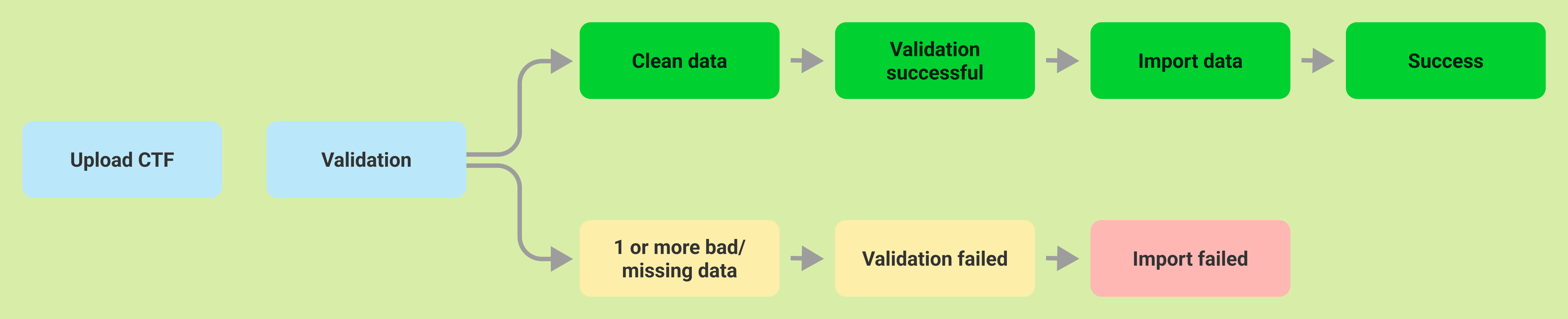
Our current workflows for importing CTF into our platform follow specifications from the DfE—allowing users to import only clean data. We had assumed that other vendors were adhering to that specification, but they do not.
Our census admins are used to importing bad data, and our platform requires data to be clean for import (or the import fails). This has led to our admins thinking that our CTF import doesn't work.
Design process
Discover
- CTF import requirements
- Post-upload confidence gaps
- High-impact workflow priorities
Experiment
- Proof-of-concepts
- Stakeholder review sessions
- Build direction confirmed
Deliver
- Engineering handoff scope
- Flows, statuses & interactions
- Build & QA specs
Challenges for us

Users are used to importing bad data.

Unable to view errors during import.

Huge number of support tickets raised.
- Though our CTF import does work for importing clean data, census admins are used to importing bad data. It's assumed that our import process doesn't work since admins can't view the errors while importing. It's harder for schools onboarding with our platform or trying to import data from other schools into our platform.
- A huge number of support tickets indicated frustration from our customers.
- CTF is a core functionality in the UK. CTF imports don't get leniency compared to our more complex modules, as this is supposed to be a simple import process.
Problem 1: "The CTF import doesn't work"
What’s happening today?
Our platform follows the DfE specification and only imports clean CTF data. Many other MIS providers let schools import files with bad or conflicting data and fix issues later, so census admins expect the same flexibility.
When imperfect files fail in our platform, users assume CTF imports don’t work — even though the problem is the data, not the workflow.
Impact
- Increased support tickets during peak census periods.
- Frustration for census admins.
- Additional onboarding challenges for schools migrating to our platform.
- Negative perception of a core UK workflow.
✅ What we're delivering
A more flexible CTF import workflow that allows users to import files containing bad or conflicting data, instead of immediately failing the import:
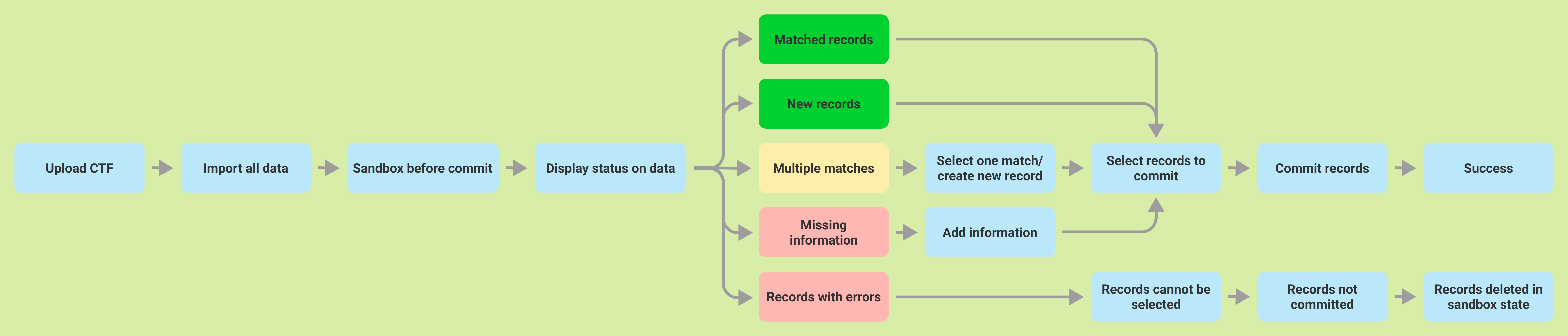
Our platform will identify records that require review and allow users to resolve them before import is committed. This provides a similar experience to other providers while maintaining our platform’s data integrity standards.
Problem 2: Users can't see what's wrong with the data
What’s happening today?
When a CTF contains bad or ambiguous data, there is currently no clear way for users to understand:
- Which records are causing issues.
- Whether a pupil is new.
- Whether a pupil already exists on our platform.
- Whether multiple matching profiles have been found.
- What action is required before import can continue.
Impact
This leaves admins with little visibility into the import process and makes troubleshooting difficult.
✅ What we're delivering
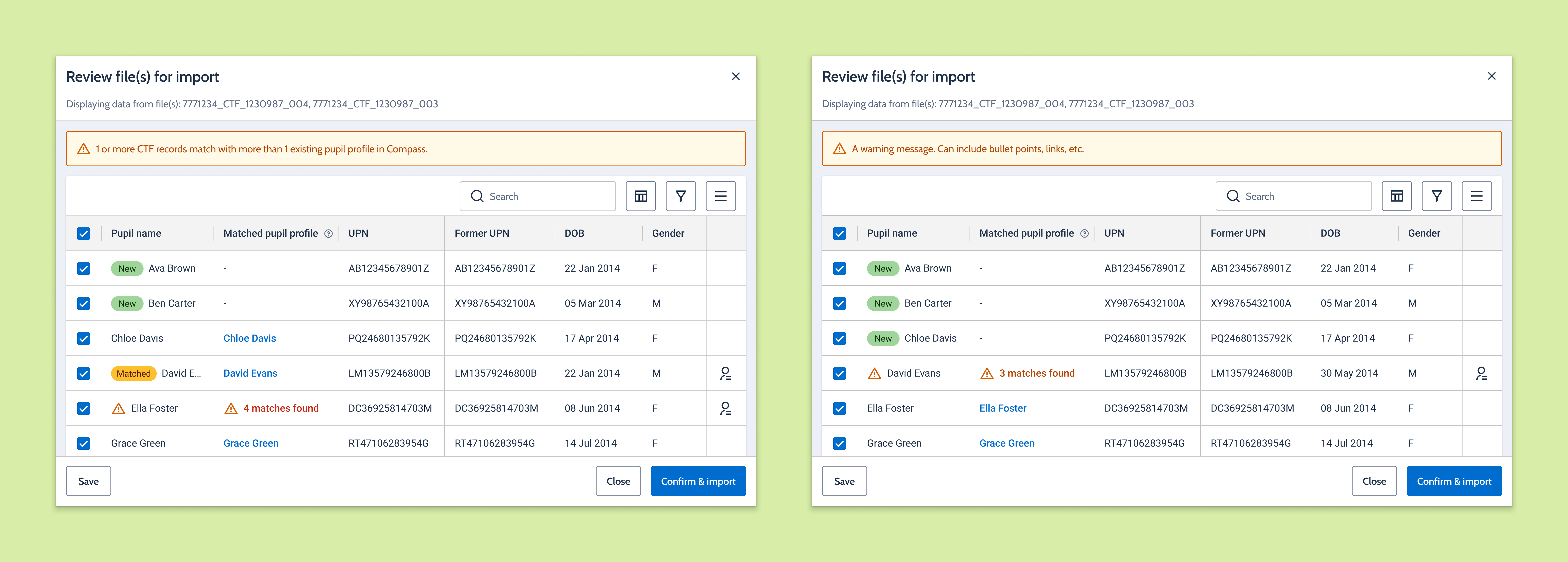
A dedicated Pending Review experience that gives users visibility of imported records before data is committed to our platform. Additional improvements include:
- New Pending Review status.
- Link from the upload workflow to Import Jobs.
- Outcome data available for all CTF imports.
- Clear indicators and warnings for records requiring attention.
This allows admins to understand exactly what is happening during the import process. Users will be able to quickly identify:
🟢 Clean data
- Existing pupil matched successfully.
- New pupil ready to be created.
🟡 Ambiguous data
- Multiple potential pupil matches found.
- User review required.
🔴 Errors
- Records that cannot be processed.
Problem 3: Users can't easily resolve conflicting pupil records
What’s happening today?
When a CTF pupil record matches multiple existing profiles, there is no structured workflow that allows admins to review and make a decision before import.
Impact
Without this capability, users risk:
- Creating duplicate pupil records.
- Updating the wrong pupil profile.
- Spending significant time manually investigating records.
✅ What we're delivering
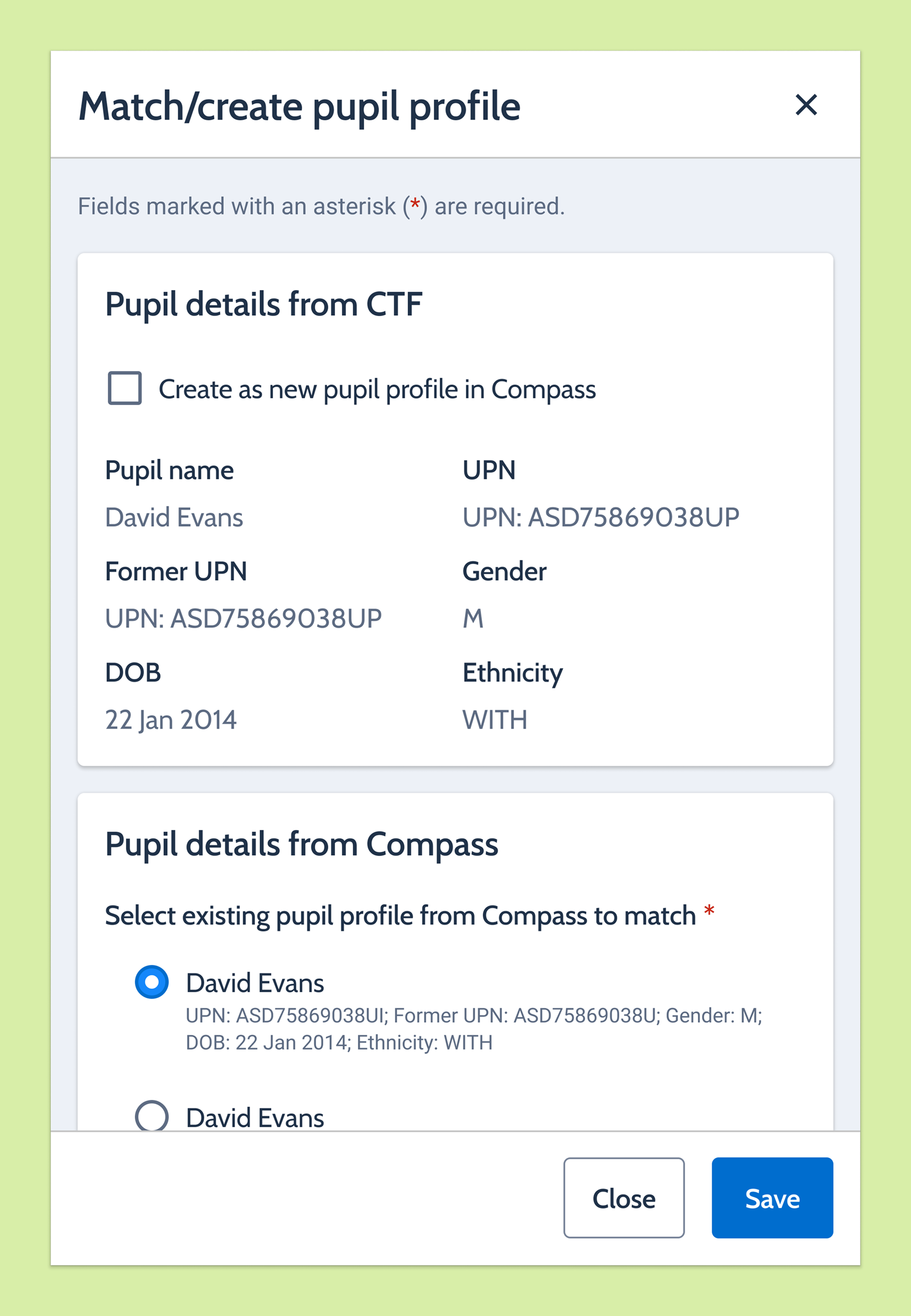
A review workflow that allows admins to resolve pupil matching decisions before the import proceeds.
For records requiring review, users can:
- View potential pupil matches on our platform.
- Select the correct existing pupil profile.
- Create a new pupil profile when no suitable match exists.
- Review existing pupil records that will be updated automatically.
| CTF Pupil | Platform match | Action Required |
|---|---|---|
| John Smith | No match found | 🆕 Create new pupil |
| Emma Jones | Single match found | ✅ Auto-match |
| Daniel Brown | 3 matches found | ⚠️ Review required |
Once all review decisions have been completed, our platform can safely proceed with the import.
Outcome
- Reduced manual investigation.
- Fewer duplicate pupil records.
- Greater confidence in imported data.
- A smoother experience for census admins during peak transfer periods.
Scenarios
Import CTF with ‘Pending review’ status
- GIVEN I am viewing the Import Management/Jobs page
- WHEN I click [Pending review] flag icon
- THEN the ‘Review file(s) for import’ side panel is displayed
- WHEN I resolve the warnings
- OR uncheck/deselect rows with warnings/errors
- AND I [Confirm & import]
- THEN the side panel is displayed in an indeterminate state
- WHEN validation is successful
- THEN the ‘Review file(s) for import’ side panel is dismissed
- AND then status of the import proceeds to ‘In progress’
Import CTF records with more than 1 matching platform profile
- GIVEN I am viewing the ‘Review file(s) for import’ side panel
- WHEN there are warnings displayed on the rows
- AND I click [Confirm & import]
- THEN a dialog is displayed with the message: “CTF records with more than 1 matching platform profile will be skipped from import.”
- WHEN I [Confirm & import]
- THEN the dialog is dismissed
- AND the side panel is displayed in an indeterminate state
- WHEN validation is successful
- THEN the ‘Review file(s) for import’ side panel is dismissed
- AND then status of the import proceeds to ‘In progress’
Match pupil profile
- GIVEN I am viewing the ‘Review file(s) for import’ side panel
- WHEN there are multiple ‘Matched pupil profile’ for one CTF record
- THEN a warning icon is displayed next to the pupil’s name
- AND the ‘Matched pupil profile’ column displays the number of matches found
- AND the ‘Match pupil’ button is displayed (on the right end of the row)
- WHEN I click [Match pupil] icon button
- THEN the ‘Match/Create pupil profile’ side panel is displayed
- WHEN I select a pupil profile from ‘Select existing pupil profile from our platform to match’ field
- AND I click [Save]
- THEN the ‘Match/Create pupil profile’ side panel is dismissed
- AND the selected pupil profile is displayed on the ‘Matched pupil profile’ column of the CTF record
- AND a ‘Matched’ chip is displayed on the pupil name column
- AND a notification is displayed with the message: “Pupil successfully saved.”
Create as new pupil
- GIVEN I am viewing the ‘Review file(s) for import’ side panel
- WHEN there are multiple ‘Matched pupil profile’ for one CTF record
- THEN a warning icon is displayed next to the pupil’s name
- AND the ‘Matched pupil profile’ column displays the number of matches found
- AND the ‘Match pupil’ button is displayed (on the right end of the row)
- WHEN I click [Match pupil]
- THEN the ‘Match/Create pupil profile’ side panel is displayed
- WHEN I check the ‘Create as new pupil profile on our platform’ checkbox
- THEN the ‘Pupil details from our platform’ section is hidden from display
- WHEN I [Save]
- THEN the ‘Match/Create pupil profile’ side panel is dismissed
- AND the ‘Matched pupil profile’ column of the CTF record is empty
- AND a ‘New’ chip is displayed on the pupil name column
- AND a notification is displayed with the message: “Pupil successfully saved.”